Quick Start
Welcome to SecTrail Certificate Manager! This guide contains the essential steps to get you started with the platform.
1. Platform Access
Navigate to your SecTrail CM address from your web browser:
https://your-sectrailcm-server
2. Public Dashboard
You can view the Public Dashboard before logging into SecTrail CM. This screen displays the general status of certificates in your infrastructure publicly.
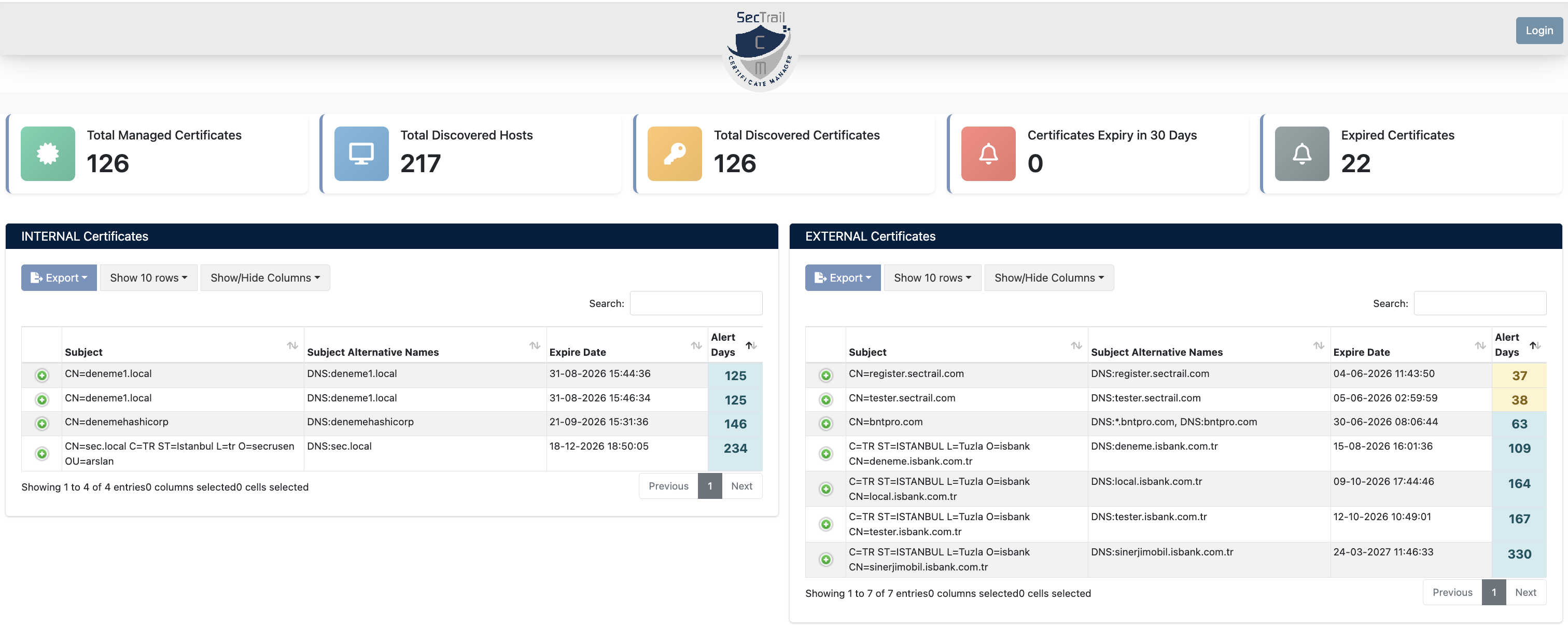
SecTrail CM Public Dashboard - General Certificate Status
Dashboard Metrics
You can see the following important metrics on the Public Dashboard:
| Metric | Description |
|---|---|
| Total Managed Certificates | Total number of managed certificates |
| Total Discovered Hosts | Total number of discovered hosts |
| Total Discovered Certificates | Total number of discovered certificates |
| Certificates Expiry in 30 Days | Certificates expiring within 30 days |
| Expired Certificates | Expired certificates |
Certificate Views
The dashboard lists certificates under two main categories:
- INTERNAL Certificates: Certificates on the internal network
- EXTERNAL Certificates: Certificates on the external network
Certificate Details
The following information is displayed for each certificate:
- Subject - Certificate subject
- Subject Alternative Names - Alternative names (SAN)
- Expiry Date - Expiration date
- Days to Expiry - Days until expiration
- You can customize the columns you want to see with the Show/Hide Columns button
- You can access certificate details by clicking the + button
3. Login
Default login credentials are used in the initial installation. For security, you must change these credentials after the first login.
Enter your login credentials:
- Username:
admin - Password:
admin
4. Main Dashboard
After logging in, you will see the main dashboard. This screen provides a comprehensive view of your system.
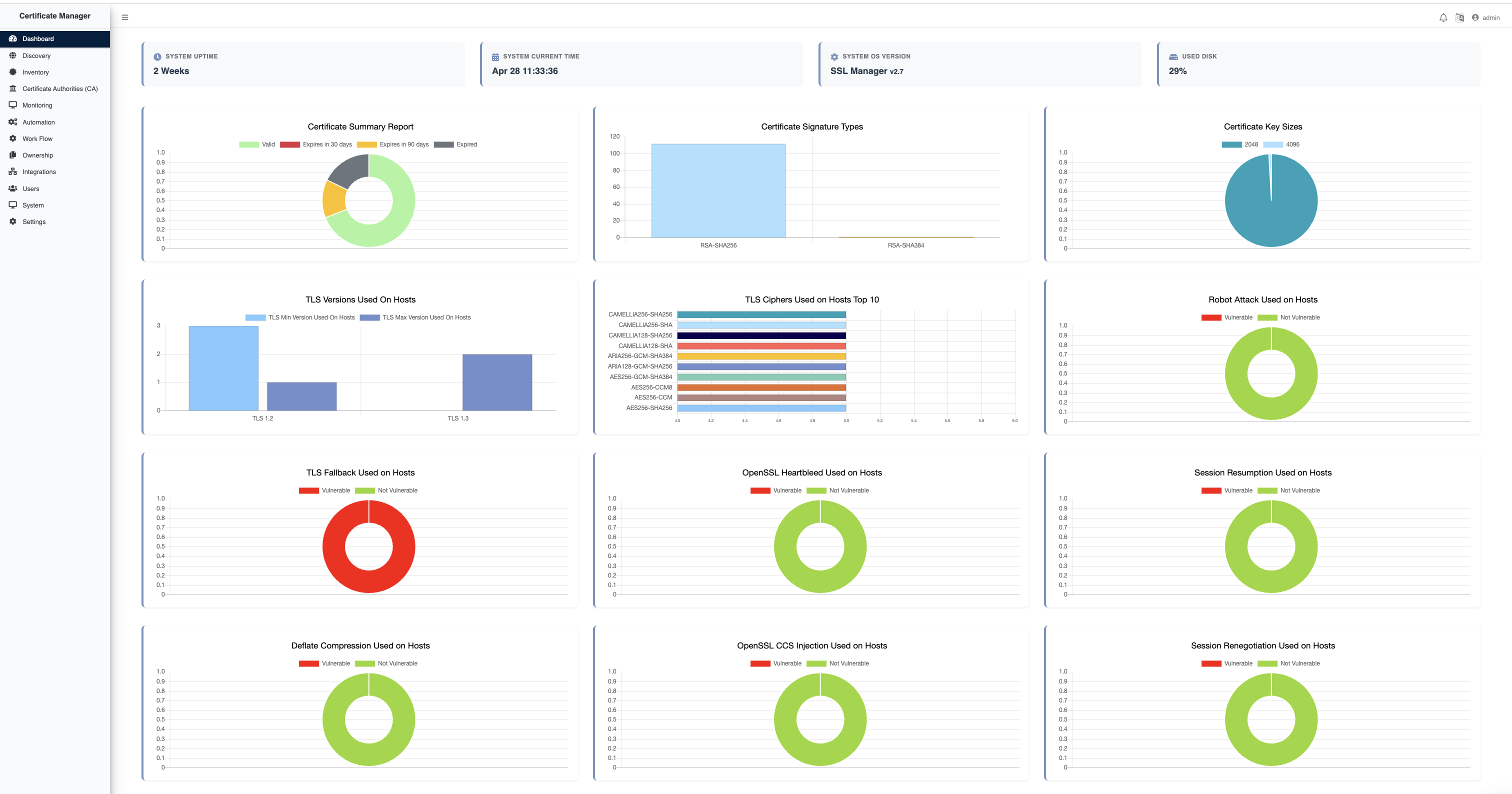
SecTrail CM Main Dashboard - System Overview
On the dashboard, you can see:
- System Metrics: Uptime, current time, OS version, disk usage
- Certificate Status Charts: Valid/expiring/expired certificates
- Security Charts: TLS versions, cipher suites, security vulnerabilities
- Left Menu: Access to all platform features
For detailed explanations of all charts and metrics on the dashboard, please review the Dashboard User Guide page.
Left Menu - Main Navigation
You can access all platform features from the left menu:
Dashboard : Main screen and overall system status
Discovery : Discover new certificates
Inventory : Certificate inventory
Certificate Authorities (CA) : Certificate authorities management
Monitoring : Certificate monitoring and alerts
Automation : Manage automated tasks
Work Flow : Workflow management
Ownership : Certificate ownership
Integrations : Integrations
Users : User management